










Most people spend more time managing their inbox than they do acting on it. Emails get read, set aside, forgotten, or buried under newer messages. Action items get lost in long threads. The result is a workday that feels reactive instead of productive.
Outlook and Microsoft Teams both include a wide range of built-in features designed to change that pattern. This article highlights a few of them, each one available in most business Microsoft 365 environments right now, with no additional configuration required. There is a lot more the platform can do, but these are a strong place to start.
Microsoft Outlook
1. Sweep: Clear Out Entire Senders in Seconds
If your inbox has dozens of emails from the same sender, such as a vendor newsletter, a subscription service, or an automated notification system, deleting them one at a time is a waste of time. Sweep handles all of them at once.
Select any email from the sender you want to clear, then click Sweep in the Outlook toolbar. Outlook gives you several options:
- Move all messages from that sender out of your inbox
- Move all existing and future messages automatically
- Keep only the most recent message
- Move messages older than a specified number of days
You can choose where the messages go, such as Deleted Items or another folder, and Outlook applies the action immediately.
This feature is particularly useful during inbox cleanup sessions. If your inbox has accumulated months of automated emails that you have never opened, Sweep can clear them out in one step and prevent the same accumulation from happening again.

2. Snooze: Keep Only What Needs Attention Right Now
Not every email requires immediate action, but leaving them all in your inbox creates noise that makes it harder to focus on what actually matters today. Snooze gives you a way to temporarily remove an email from view, and have it return at a time when you can act on it.
Right-click on any email and select Snooze. Outlook will offer a set of preset times, such as later today, tomorrow morning, this weekend, or next week, as well as the option to choose a custom date and time. The email disappears from your inbox and reappears at the top, marked as new, exactly when you need to deal with it.
This is especially useful for emails that contain information you need for a meeting that has not happened yet, requests that depend on something else being completed first, or anything you want to review at the start of a specific workday. Snooze removes the mental load of tracking those emails manually.

3. Scheduling Poll: Stop the Back-and-Forth on Meeting Times
Finding a time that works for everyone is one of the most common sources of unnecessary email chains. Scheduling Poll, available directly in Outlook, eliminates most of that friction by letting you propose multiple time options and allowing recipients to vote on their availability.

When composing a new email, click the three-dot menu in the toolbar and select Scheduling Poll. You will be able to propose several date and time options based on your calendar availability, and Outlook generates a clean polling interface that recipients access from the email. Votes are collected, and you receive a summary, at which point you can confirm the meeting with one click.
This feature is particularly effective for external meetings where you do not have visibility into the other party’s calendar, or for group meetings where coordinating five or more schedules through individual replies quickly becomes unmanageable.
4. Folders: Build a System That Does Not Rely on Search
An inbox is not a filing system. Leaving every email in one place, regardless of whether it has been actioned, makes it harder to find important items later and harder to keep track of what still requires a response. Folders give you a structure that separates active work from archived communication.
The most effective folder systems are simple. A few well-named folders, organized around clients, projects, or departments, are more useful than an elaborate hierarchy that requires effort to maintain. Once an email has been responded to or filed for reference, move it out of the inbox. The inbox should contain only what still requires attention.
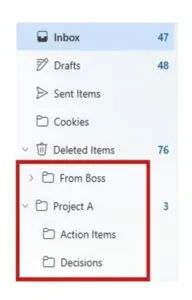
Outlook also supports nested folders, so you can create a top-level folder for a client or project and then add subfolders for action items, decisions, and reference material. Pair folders with the Sweep and Snooze features described above, and you have the foundation of an inbox that stays manageable over time.
Microsoft Teams
5. Schedule Messages: Send at the Right Time Without Being Online
Microsoft Teams includes a feature that is easy to overlook but highly useful in practice: the ability to schedule a message to be sent at a future date and time. This is useful when you want to communicate something at a specific moment without having to remember to send it manually.
To schedule a message, type your message in the compose box, then click the small arrow next to the Send button. Select Schedule send, choose the date and time you want the message to be delivered, and confirm. The message will sit in a draft state and be sent automatically at the scheduled time.
If you finish work early or late but do not want to pressure colleagues to respond outside of business hours, scheduling the message for the next morning respects their time and avoids the implicit expectation of an immediate reply. It is also useful for time-sensitive reminders that need to land at a precise moment, such as a heads-up before a meeting or a status update tied to a project milestone. The feature is available in both direct messages and channel posts, and it works across time zones.

6. Channels: Organize Conversations by Topic, Project, or Team
A general group chat where every conversation happens in the same thread gets cluttered quickly. Channels solve that problem by giving teams a dedicated space for specific topics, projects, or departments. Each channel has its own conversation history, file storage, and tab structure, so the context for any given piece of work stays organized and accessible.
Teams can be structured in a number of ways depending on how the organization works. Common examples include:
- Project-specific channels: Project Alpha Launch, Client XYZ Website
- Departmental channels: Marketing Team, Sales Updates, HR Corner
- Topic-based channels: General Announcements, Brainstorming Ideas, Social Committee
Channels reduce the noise that comes from routing everything through a single thread. Team members can follow the channels relevant to their work, catch up on specific conversations without scrolling through unrelated messages, and post updates where the right audience will see them. For organizations managing multiple clients or parallel workstreams, channels are one of the most effective ways to keep communication structured without adding overhead.

7. Microsoft Whiteboard: A Shared Canvas That Stays After the Meeting Ends
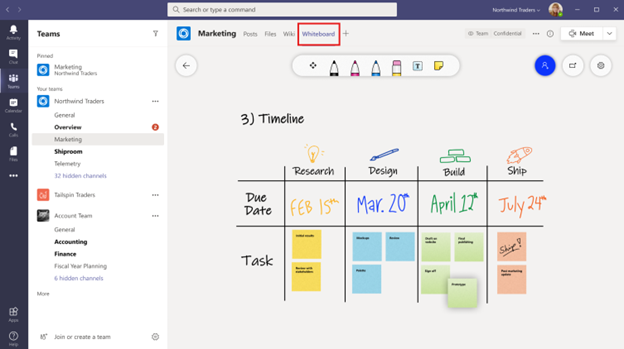
Most meetings generate ideas that live and die in someone’s notes. Whiteboard addresses that by giving every Teams meeting a shared visual workspace where participants can sketch out concepts, map processes, organize ideas with sticky notes, and build on each other’s thinking in real time.
What makes it more useful than a screen share or a photo of a physical whiteboard is that the canvas persists. When the meeting ends, the whiteboard stays accessible inside Teams. Teams can return to it the next day, pick up where they left off, and continue building on it without reconstructing the original work from scratch.
The tool is built into Teams directly, so there is no separate application to open or link to share. Any meeting participant can contribute during the session, and the board remains available to the team afterward through the channel or meeting chat. For distributed teams that cannot get everyone in the same room, Whiteboard makes visual collaboration feel closer to in-person than most other tools in the Microsoft 365 stack.
A Starting Point, Not a Complete List
Microsoft 365 includes far more than what is covered here. Outlook and Teams alone have dozens of features that most users have never opened. The seven highlighted in this post are worth learning first because they address problems that come up every day and require almost no setup to start using.
Getting the most from Microsoft 365 is not just about having the tools. It is about helping people use them effectively. Convergence Networks provides instructor-led Microsoft 365 training designed to help teams work more efficiently, improve collaboration, and make better use of the technology they already have. Whether you are introducing new features, improving adoption, or building consistent practices across your organization, we can help. Contact us to learn more about our Microsoft 365 training programs and how we can help your team get more value from the tools they use every day.