










Most teams are not short on tools. They are short on time, clarity, and alignment. Emails pile up, chats get buried, and meetings happen back-to-back with little time to prepare or follow through. Important context is spread across Outlook, Teams, SharePoint, and individual inboxes, making it harder to stay aligned. The result is not a lack of effort; it is friction that slows down progress and decision-making.
Integrating AI helps reduce that friction by making it easier to find information, prepare for conversations, communicate clearly, and move work forward with confidence. About 75% of workers say AI improves the speed or quality of their work, with typical time savings of 40 to 60 minutes per day.
At Convergence Networks, teams are using Microsoft Copilot in structured, repeatable ways across roles. This is not about occasional use. It is about embedding Copilot into daily workflows. Below are real use cases, along with prompts and practical ways teams are applying them.
Find Documents and Conversations Faster
Copilot helps teams quickly locate and understand information across emails, chats, and files without manual searching.
Instead of digging through Outlook or Teams, you can ask Copilot to find relevant content, summarize it, and provide direct access.
Prompt:
Find the document or message about [topic] that involved [person or team], likely stored or sent via Outlook or Teams in the last [x] weeks. Summarize it and give me the link.
Prepare for Meetings
Copilot helps you walk into meetings with context by analysing past interactions and surfacing what matters most.
This is especially useful for one-to-one meetings, leadership discussions, or client conversations where preparation impacts outcomes.
Prompt:
Based on my prior interactions with [person], give me 5 things likely top of mind for our next meeting.
Start Better Team Discussions
Copilot can help structure conversations so meetings are more productive and not repetitive.
This is commonly used for retrospectives, team reviews, or project debriefs.
Prompt:
Suggest common questions that can be asked to get a retrospective started with my colleagues.
Catch Up on Threads and Conversations
Copilot simplifies long or complex conversations so you can quickly understand what is happening without reading everything.
This is useful when joining a discussion late or reviewing long email chains.
Prompt:
Explain this to me like I am 5 years old.
Prepare Client Communication
Copilot helps structure communication based on actual project context, reducing guesswork and improving clarity.
This is useful for project managers, account managers, and consultants who need to align messaging with client priorities.
Prompt:
I am a Project Manager; my client is focused on cost, performance, or change. Reference the relevant documents and communications, and suggest 1 to 3 items I should keep top of mind. Format these as if I were a Business Analyst.
Communicate Changes Clearly
Copilot supports change management by helping teams address resistance, highlight value, and reduce confusion.
This is useful when rolling out new systems, processes, or updates.
Prompt:
Please reference this document and act as my change management authority. Based on recent communications with [client or team], suggest how to manage risk and resistance to change. Include what is in it for the end user.
Keep Communication Simple
Copilot helps translate technical or complex topics into clear, client-friendly language. This is especially important when communicating with non-technical stakeholders.
Prompt:
Draft a client-facing email explaining [topic], using a professional and calm tone. Avoid technical jargon.
Review Project Workplans
Copilot helps identify issues early by reviewing plans for gaps, dependencies, and unrealistic assumptions.
This reduces risk before execution begins.
Prompt:
Review this workplan and identify gaps, sequencing issues, unrealistic assumptions, or missing dependencies.
Create Escalation Summaries
Copilot helps structure clear, concise summaries for leadership, making it easier to communicate urgency and decisions.
Prompt:
Create a concise escalation summary outlining the problem, business impact, options, and recommended decision. Reference the relevant chats, emails, and documents.
Plan Your Week
Copilot helps prioritize work by combining calendar events, emails, and tasks into a structured plan.
This reduces reactive work and improves focus.
Prompt:
Plan my week. Aggregate my calendar, flagged emails, and Teams mentions. Produce a prioritized top 10 actions and propose time blocks. Flag conflicts and suggest reschedules.
Track Progress and Risks
Copilot helps provide a quick view of progress and potential risks across projects.
This supports faster decision-making without needing full reports.
Prompt:
Are we on track for the [project or launch]? Check progress, results, and risks. Give me a probability.
Gain Insight Into Your Time
Copilot can analyze how time is spent across meetings and communications, helping identify priorities and inefficiencies.
Prompt:
Review my calendar and email from the last month and create 5 to 7 buckets for projects I spend most time on, including percentage of time and short descriptions.
Draft Internal Documentation
Copilot helps create structured documentation quickly, reducing the effort required to maintain internal knowledge.
Prompt:
Draft an SOP for submitting a change request form to Inside Sales.
Build Executive Summaries
Copilot can turn detailed reports into concise summaries that are easier for leadership to review.
Prompt:
Create a brief executive summary based on this report.
Identify Risks and Assumptions
Copilot helps surface risks and assumptions early in projects, improving planning and reducing surprises.
Prompts:
Identify all risks associated with this project based on the scope. Identify all assumptions associated with this project.
Support Performance and Management
Copilot can assist managers with structured feedback and performance planning.
Prompt:
Identify the top 10 things a manager should do for a [low, medium, high] performer in a [role] within [industry].
Making Copilot Repeatable with Saved Prompts
One of the most important ways to scale Copilot is by saving and reusing prompts. This ensures consistency across teams and reduces the need to recreate effective prompts.
To save a prompt, open Copilot in a Microsoft 365 app such as Word, Excel, or Teams. Type the prompt you want to save in the Copilot input box. If you’ve already used a prompt and want to save it, locate it in your recent prompt history.

To use a saved prompt, open the prompt library in Copilot, search or browse for the prompt, insert it into the input box, and run it.
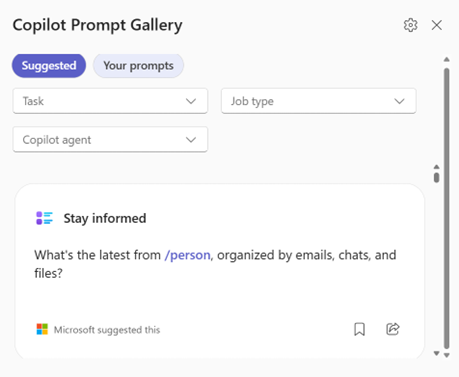
Building a shared prompt library allows teams to standardize how Copilot is used across the organization.
What This Looks Like in Practice
The real value of Copilot is not in individual prompts. It is in how they connect across the workday.
Teams spend less time searching for information and more time acting on it. Meetings are more focused because preparation is faster, with Copilot helping create clear agendas and keep discussions on track. Communication is clearer because it is grounded in a real context. Projects move forward with fewer surprises because risks are identified earlier.
This is where teams start to see consistent gains in productivity, not by working more, but by removing the friction that slows them down.